Brands
For whoever is running the desk.
A brand is a company as your clients meet it: a name, a colour, a logo, an email identity, its own departments and clients, and its own everything else. One install runs as many as you like.
If you are one company, you have one brand: it exists, it is the default, and you can forget the concept. The rest of this page matters when you run several.
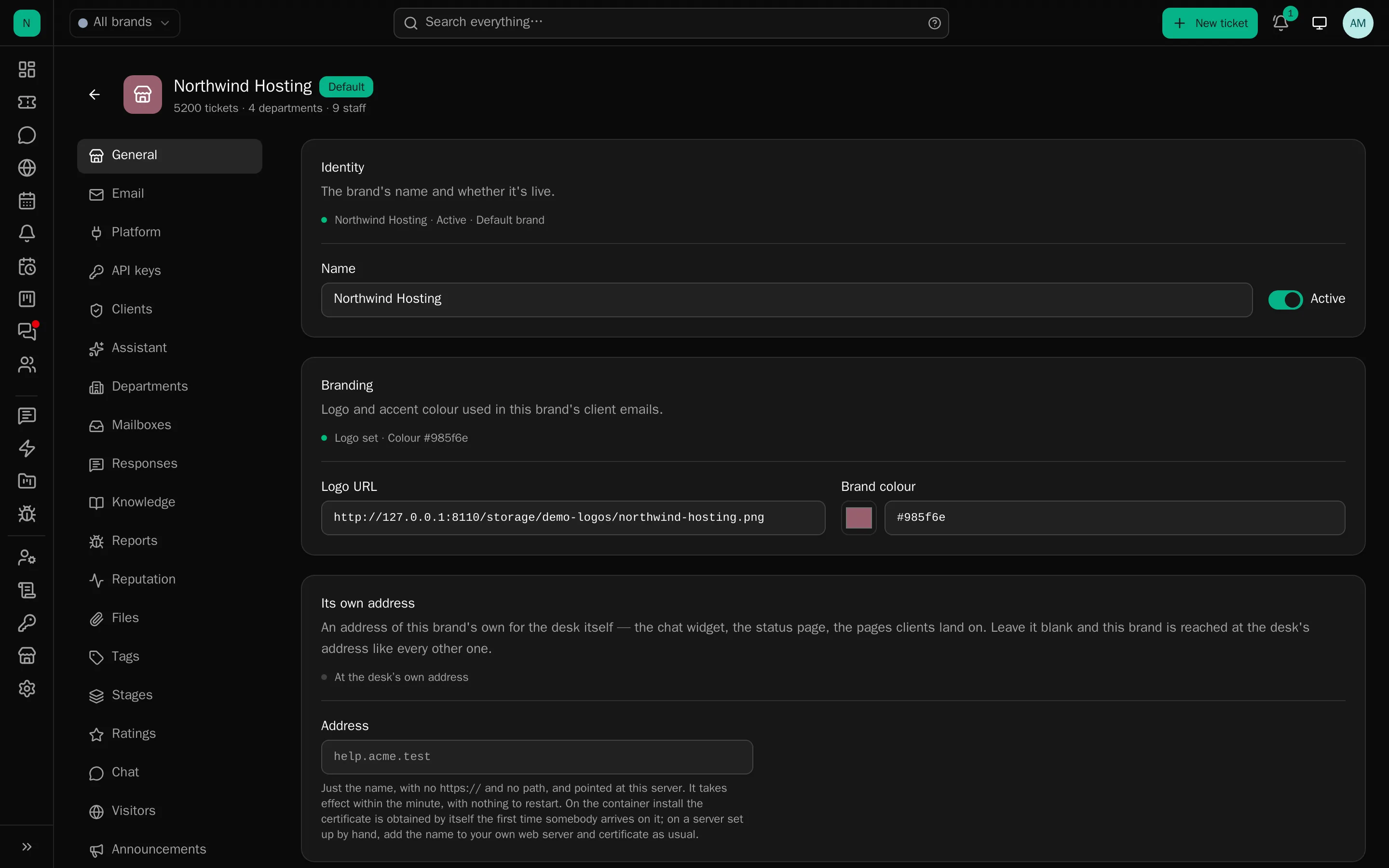
What a brand owns
| Identity | Name, slug, colour, logo (served from the desk, so it appears on browser notifications too) |
| From-name, from-address, SMTP or a mailbox to send through, templates, footer | |
| Departments | Its own set, with their own members, hours and fields |
| Clients | Client records, with the external ids of the platform they came from |
| Platform | Which billing system the brand’s clients live in, and the keys to reach it |
| Content | Tags, canned responses, knowledge sources and documents |
| Automation | Rules, AI settings, tone, triage mode, model choice |
| Channels | Chat settings and sites, announcements, status components and incidents, mailing lists |
| Files | Which kinds of file each group may attach, how large and how many |
| Projects | The issue tracker’s projects and their members |
The brand’s page has a tab for each of those. Nothing on it leaks to another brand.
The boundary is enforced, not decorated
Staff belong to brands. An agent who is not in a brand cannot reach its tickets by any route: not the list, not search, not a direct link, not the API, not an AI answer, not a rule. That is checked by the policies every request passes through, so a screen that forgets to filter still cannot show what it should not.
Two consequences worth knowing:
- A new agent sees nothing until they belong to at least one brand and one department. This looks exactly like a broken install. It is the first thing to check.
- Administrators see everything, in every brand. There is no “administrator of one brand”; if you need that, make them an agent with all of that brand’s departments and the permissions they need.
Starting another brand
Add the brand, then tick which groups to copy from an existing one:
- Email as a working copy, SMTP password, from-address and name, and the human-verification keys.
- Client settings: guest access, submission limits, auto-close.
- AI settings: provider, model, tone, triage mode.
- Departments: the structure, not the tickets.
- Ticket rules: copied and switched off, so you can read them before they act.
You can copy SMTP settings from another brand at any time afterwards, which is the usual answer to “the new brand’s mail is not going out”.
Which brand is in view
The top bar has a brand switcher. “All brands” shows everything the person may see; picking one narrows every list, count and search to it, and the header logo follows. Staff in a single brand never see the switcher at all.
Brand cards
The Brands page shows a card per brand with the numbers that tell you whether it is healthy: tickets and how many are open or awaiting staff, the last seven days, departments, staff (and how many are online), clients, live chat status with the waiting and active counts, the ratings headline, knowledge sources with a warning if one is failing, mailboxes with a warning if one has stopped, campaigns sending, and visitors on the site now.
They are computed for every brand in a few grouped queries and cached for a minute, so the page stays fast on a desk with a dozen brands.
Deleting a brand
There is no button, deliberately. A brand owns tickets, clients and history that other things point at, and the sensible end for a brand you no longer trade as is to switch its departments to staff-only, stop its mailboxes, and leave the history where it is.